PolariStar — İstar Bilişim Türkçe Request a demo

← All modules

Endpoint

Windows Agent and Remote Support

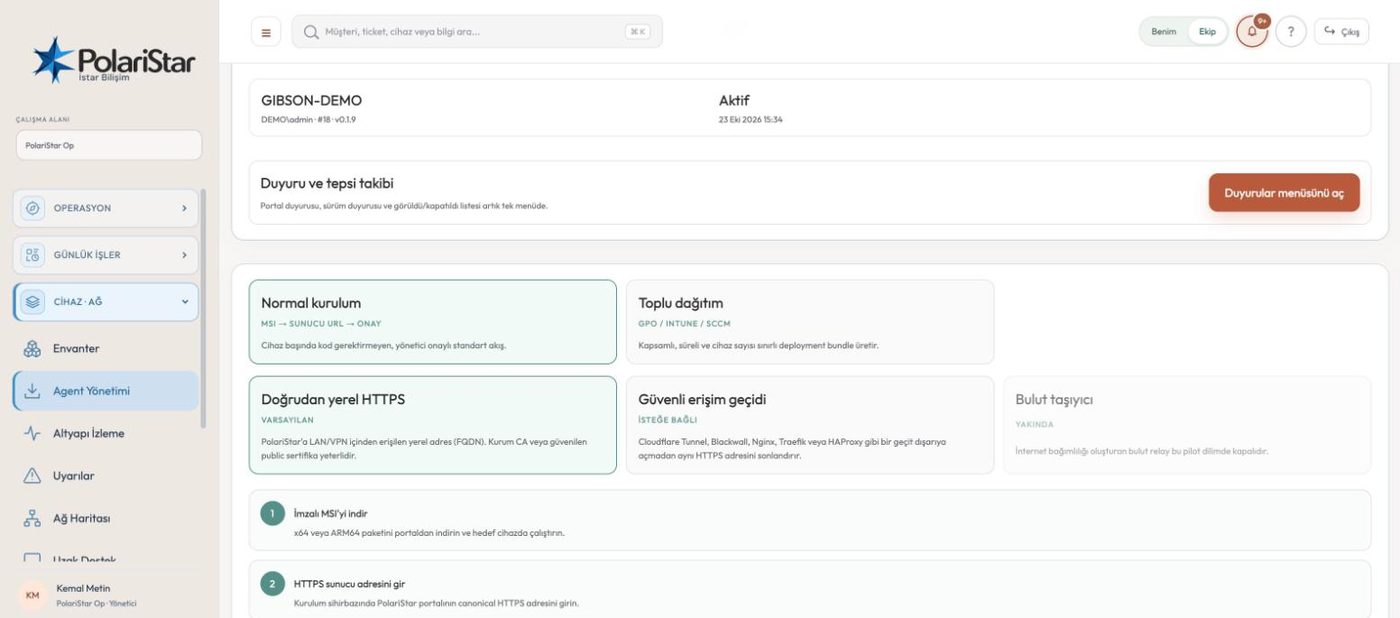
The enrolment key and an admin approval together put the device in the right workspace.

The Windows agent exists for the cases that need operating-system level detail on PCs and servers. For network gear the default path is read-only SNMP, not an agent; the agent only comes in when you need to see the operating system side. The install package carries the portal address and that workspace’s enrolment key, the device lands in a pending-approval queue, and an admin picks the scope and approves it. On the remote support side what exists today is an approval-based session request and its audit trail; live screen control will not open to general use before an independent security test.

From the PolariStar panel, with demo data.

The enrolment key prevents the wrong workspace

Every workspace has its own enrolment key, generated from the Agent Management screen. At install time the portal address and that key are supplied together, so the device ends up under the right tenant. An agent installed with the wrong key lands in the wrong place — that is the known source of the “why did this show up in my account” confusion.

No device enters inventory unapproved

A finished install does not write the device straight into the list; it lands in the Pending device approvals queue. An admin picks the scope — the organisation or one customer (a department in organisation mode) — and approves or rejects it. The agent polls for that decision and only receives its own identity after approval. In a multi-tenant install with no default tenant set, nothing is auto-selected; the admin decides the scope.

The agent is optional

For switches, routers, firewalls, printers and UPS units the default path is read-only SNMP, and nothing is installed on them. The agent goes only on PCs and servers, where operating system, service and session detail matter. Endpoint count and inventory coverage are not the same number.

Approval-based remote support

A remote support request depends on user approval, and the request is written to the audit log through requested → delivered → consented / denied / revoked / expired transitions. Consent, scope and expiry are required parts of the design, not a convenience you switch off. The Remote Support screen is an operations queue: which request is in which state on which device, on one page.

Outbound-only connection

The agent opens the connection itself, to the portal’s canonical HTTPS address. No listening port is opened on the endpoint, and RDP and 3389 are not used. Because nothing needs to be punched inward into the customer network, you are not asking for firewall exceptions.

x64 and ARM64 packages

The MSI is built from WiX v4 sources for x64 and ARM64, with packaging driven through GitHub Actions. A production package has to pass the protected signing gate and Authenticode verification. Output with PILOT-UNSIGNED in its file name is not production ready, and the portal shows it only when the unsigned-pilot flag is explicitly on.

Bulk rollout without a stored password

Agent Management → Bulk deployment lets you pick the scope, a maximum device count and a validity between 1 and 24 hours, then download a customer-bound bundle; MFA is required for the download. The bundle holds no permanent agent password, only a short-lived revocable grant that can optionally be restricted to an IPv4 CIDR. The same silent install command works with GPO, Intune, SCCM and PDQ. With no artefact present the portal stops without issuing a grant and shows the missing build command.

HTTPS by default, HTTP as an exception

The portal address has to be a canonical HTTPS FQDN; the install wizard will not quietly accept a raw IP or an unencrypted address. Trying HTTP for an isolated lab or pilot takes two separate explicit opt-ins: an environment flag on the server and a lab checkbox in the MSI screen. That mode does not encrypt traffic and is not for customer data.

Turkish install and removal path

The agent side ships with a Turkish surface: Kurulum.cmd and a system tray application. Install, removal and management scripts come in the package; removal is gated by a protection password, so a user cannot simply take the agent off. A version upgrade and a real uninstall behave differently, and revoking the portal-side record is a separate step.

How PolariStar is deployedA three-layer flow diagram. Devices at the customer site, plus a thin local collector, push data outbound only into the customer's own workspace. Inventory and the local network stay there. The service provider, PolariStar Op, sees only the records the customer chose to send and Op accepted. The flow runs one way.Deployment model — where the data rests, which way it flowsSITECustomer siteNetwork gear, servers, PCs and a thin local collector.The collector scans read-only and pushes into its own tenant.CUSTOMERThe customer's workspace (tenant)Inventory and the local network stay here, separated by tenant scope.The customer sees their own devices, requests and reports here.SERVICE PROVIDERPolariStar OpOp sees only records picked for sending, after an approval queue.End users never see this sharing menu.One direction: outbound connections onlyNo inbound port is opened to the site; the collector dials out.Only what has been accepted is shared1 pick a type → 2 add devices or text → 3 Op accepts.Customers do not get a full install: a tenant is opened from the Oppanel, and a thin collector goes on site only when local networkvisibility is needed. A fully offline package applies only if a customer wants the whole product on their own server.

Rolling the agent out across an office

  1. 1Generate the keyThe enrolment code and protection password are generated from the Agent Management screen. You choose single device or bulk deployment here; for bulk you also set the scope, the device limit and how long the grant stays valid.
  2. 2Download the packagePick x64 or ARM64 and download; the download asks for MFA. The portal reads the metadata file matching the MSI in the artefact directory and recomputes the SHA-256. In production mode only a signed, Authenticode-verified artefact is accepted.
  3. 3Install on the machinesOn a single device the wizard opens and you enter the portal address. For a whole office the same MSI goes out silently through GPO, Intune, SCCM or PDQ; the short-lived grant is never carried on the command line, it travels through a protected content channel.
  4. 4The device waits for approvalThe installed agent announces itself to the portal and the device appears in the pending approvals list. It is not in inventory yet, and it has not received its identity.
  5. 5An admin picks the scope and approvesThe admin attaches the device to the organisation or to a customer (a department in organisation mode) and approves it. A rejected device never gets in. After approval the device lands in that workspace’s inventory.
  6. 6Regular data starts arrivingThe agent sends heartbeat and inventory data to the portal, which is how you see whether a machine is alive. Records arriving through the agent channel sit behind their own filter in the Inbox, so an operator can separate agent-sourced notices from email.
  7. 7Request remote support if neededThe support request is delivered to the user, who consents or denies. Every stage of the request is written to the audit log and the state shows up in the Remote Support queue. Live screen control is not in this module’s scope today.

Frequently asked

Do I have to install the agent on every device?

No. For network devices — switches, firewalls, printers, UPS units — the default path is read-only SNMP and nothing is installed on them. You install the agent only on PCs and servers, when you need the operating system and service side.

What if a device lands under the wrong customer?

There are two known causes: the wrong workspace’s key was used at install time, or the scope was never stated in a multi-tenant environment. That is exactly why the approval step exists — before the device is written into the list an admin picks the scope and can reject anything that looks wrong.

Can you watch my screen with remote support?

Live screen capture and keyboard or mouse control are not in scope today. What exists is the approval-based support request and its audit trail. As a product principle no session video is recorded, and real remote control will not open to general use before visible user consent, revoke behaviour and an independent security test are done.

Do I need to open a firewall port?

No. The agent opens the connection outbound itself, to the portal’s HTTPS address; no listening port is opened on the endpoint and RDP is not used. The only address the agent needs to reach is its own portal.

How do I remove the agent?

A removal script ships in the package and the standard MSI uninstall path works too; removal is gated by the protection password. A version upgrade keeps the device registered, while a real uninstall clears the local state. You also need to revoke the device record on the portal side.

Does it do patching and software deployment?

No. Today this module covers inventory, status data and the approval-based support request. Patch management and software deployment stay a principle to be revisited only after a signed package chain, approval and rollback are in place; until that is done we do not call this a full RMM.

Who it helps

IT teams running end-user machines and servers, and MSPs that have to keep endpoint inventory separated per customer.

Related modules

See it on your own operation

Let us open a workspace for you and try it with your own customers and devices. We will guide you through setup and data migration.