PolariStar — İstar Bilişim Türkçe Request a demo

← All modules

End user

Customer Portal

Customers see their own work, and nobody else’s.

The portal is the narrowest surface in PolariStar, and deliberately plain. It has four screens: Overview, Requests, My devices and the Knowledge Base. A customer who never installed the product can still raise requests here, so the portal stands on its own as a light support door. What matters is not how simple the interface looks but where the boundary is enforced: scope is decided in the API and query layer, at a single authorisation gate. Hiding a menu item is not enough — an out-of-scope request is refused before it ever reaches data.

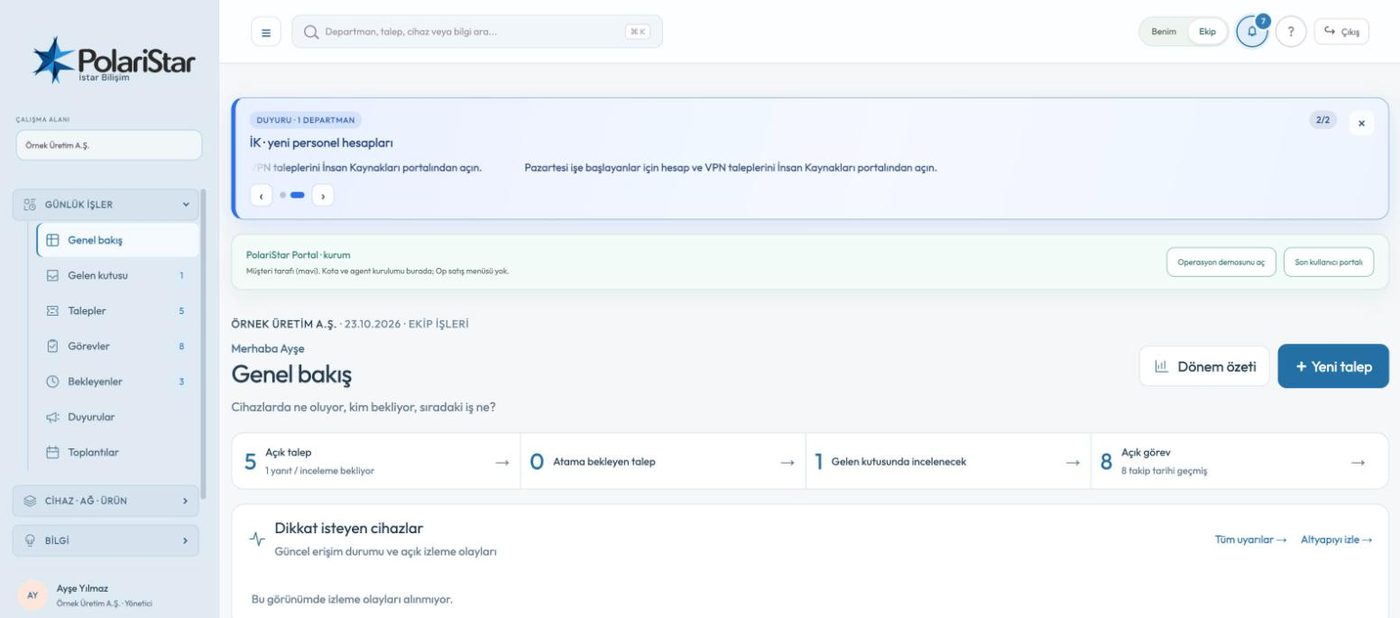
From the PolariStar panel, with demo data.

Enforced in the API

Who the portal user is, which tenant they belong to and which company they may see are all resolved at one gate: getPortalUser. The code map counts 72 callers of it, so the access decision is not scattered across endpoints. On a submission the company id is not read from the request body at all — it is taken from the scope of the session, so sending a different one from the browser achieves nothing. If the chosen device is not in that company’s inventory, the submission is refused outright.

Four screens, nothing more

Overview and Requests under Support, inventory under My devices, the Knowledge Base under Help. End users never get the internal menu, the operations screens, the sales group or the administration tabs. Even in organization mode, an end user does not see the screen that shares records with PolariStar Op.

The response arrives trimmed

In the device record sent to the portal, the serial number, IP address, MAC address, firmware version and location come back empty. What remains is the part a customer can act on: name, type, vendor, model, status, who it is assigned to, and — with the lifecycle permission — the licence, support and warranty names with their expiry dates. Sale price, cost, gross margin, commission and supplier purchase price are not on this surface at all, and internal technical notes come back blank with the team roster empty. Nor is there any trace of another customer's identity, device, request or report.

Requests land in the inbox

A submission from the portal does not become a ticket straight away. It arrives in the inbox for review, tagged with Portal as its channel, and the team is notified. The answer the customer gets says so plainly: a ticket is created once the support team takes it in, and until then it is not in the request list. The ticket queue does not swell with every message from outside.

Four permissions, four switches

The customer role is not one on-off flag: viewing requests, raising requests, viewing documents and viewing lifecycle dates are granted separately. Licence, support and warranty dates appear only with the lifecycle permission, and that same permission decides who receives the 90, 30 and 7 day expiry notices. Without the create permission the portal stays a read-only window.

Customer confirms, team closes

A customer can say “it works for me now” from the portal. That does not close the record; it marks it ready to close. The final close belongs to the internal team, together with a closing summary, so an optimistic confirmation and a verified fix are never squeezed into one step.

Invited accounts, MFA first

Customers do not create their own accounts. An administrator opens one from the Users screen and picks the role and the permissions. The temporary credentials are shown once and handed over through a secure channel. On first login the invited user sets their own username and a password of at least 12 characters, and cannot reach portal data until the Authenticator MFA setup is finished.

Per install, per tenant

A portal user's company access is kept unique per tenant, user and company, and the session is stored with the tenant it belongs to, while the username is unique across the installation. The same email address can exist in two separate PolariStar installations, but those are not one identity, and access in one does not carry into the other.

Organization mode says department

Same engine, different vocabulary. On the organization surface the portal is a department user's request surface: department instead of customer, user confirmation instead of customer confirmation, IT team instead of technical team. The fields and the flow stay the same; only the labels change.

Role boundaries — who sees whatA four-row matrix. The technical role sees tickets, inventory, monitoring and the password vault, but not sale price or margin. The sales role sees the catalog, quotes and sales reports, but not technical solution detail unless granted explicitly. An administrator sees both sides. The customer portal sees only its own data. The boundary is enforced in the API and query layer, not in the interface.Who sees what — and where the boundary is enforcedROLESEESDOES NOT SEETechnicalSupport teamTickets, inventory, monitoring,the password vault, support reportsSale price, cost, margin,sales reportsSalesCommercial teamCatalog, quotes, customerproducts, sales reportsTechnical solution detail,unless granted explicitlyAdministratorPlatform ownerBoth support and sales reports,plus portal licensesA limited admin cannot issueplatform licensesCustomer portalEnd userTheir own requests, their owndevices, published solutionsAny other customer's data,cost, margin, commissionThe boundary is not only in the interface; it is enforced in the API and query layer.Menus narrow by role, but the restriction passes through the query gate (canAccessClient, getPortalUser).

A portal user raising their first request

  1. 1The administrator grants accessA new user is created from the Users screen with a role and a set of permissions. PolariStar generates the username and a strong temporary password, shown on screen once and passed on through a secure channel.
  2. 2First login setupThe user sets their own username and a password of at least 12 characters, then goes through MFA setup with an authenticator app. Portal data stays closed until that is complete.
  3. 3The request is writtenSubject, request type, priority, category and a description of the problem go in. The description has to run to at least ten characters, because a one-word line tells the team nothing.
  4. 4A device is attachedIf the request concerns a device, the scope comes from the session: it can only point at a device in the inventory of the user's own company. A device id outside that scope is rejected at the API.
  5. 5The submission reaches the inboxIt crosses over not as a ticket but as an inbox record tagged Portal, carrying the request type, priority, category and chosen device, and the team is notified. A ticket is created when an operator takes it in.
  6. 6The customer confirms, the team closesWhen the work is done the customer can confirm the resolution from the portal. That does not close the record: the internal team writes the resolution and closing summary, and the service summary sent to the customer is built from the same record.

Frequently asked

My customer has no PolariStar install. Can they still raise requests?

Yes. The portal works as a light request surface for customers who never installed the product — that is one of the three ways PolariStar runs. Nothing has to be deployed on their side: no install, no agent, no collector. An account and a browser are enough.

Could they accidentally see another customer's data?

The restriction is applied in the API and query layer, not in the interface. The signed-in user's tenant, role and permitted company are resolved at a single gate, and on a portal submission the company id is never read from the client at all. A company or device id outside that scope is refused even if it is submitted by hand.

I sent a request. Why is it not in my list?

A submission from the portal does not become a ticket immediately; it goes into the inbox for review first. Once the support team takes it in, a ticket is created and shows up in the list. The confirmation on the submission screen says exactly that, so nothing looks lost.

Can they see licence, support and warranty dates in the portal?

Yes, with a permission of its own. A customer user who has the lifecycle permission sees the licence, support and warranty names and expiry dates on their company's devices, and that same permission decides who gets the 90, 30 and 7 day expiry notices. Letting a customer administrator add those records themselves and pick who owns a renewal is a stated goal on the roadmap, not a promise being made today.

What does the Knowledge Base show in the portal?

The intent is controlled publishing from a single source: of what the internal team writes, only published articles appear in the customer portal, and technical information specific to one customer is never shown to another. The honest status is that the menu and the basic data model exist today, while publishing, version history and customer scoping are marked as still to be completed in the documentation.

How does the portal read in organization mode?

The organization surface does not use customer language. There the portal becomes a department user's request surface: departments instead of customers, and user confirmation instead of customer confirmation. Even where the stored status value is unchanged, the label rendered on screen is produced in organization vocabulary.

Who it helps

Staff at the companies you serve who want support without running anything themselves, and, for internal IT, the department users who raise the requests.

Related modules

See it on your own operation

Let us open a workspace for you and try it with your own customers and devices. We will guide you through setup and data migration.